
You’ve just installed WordPress. You’re staring at a blank dashboard, excited about building your website. But here’s the problem: vanilla WordPress is like a smartphone without apps—functional, but missing the features that make it truly powerful.
The good news? WordPress plugins can transform your basic site into a marketing machine, complete with analytics, SEO optimization, social sharing, and bulletproof security. The bad news? There are over 60,000 plugins in the WordPress repository, and choosing the wrong ones can slow down your site or create security vulnerabilities.
Here’s what most beginners don’t realize: you don’t need dozens of plugins. You need the right 10-15 essential plugins that cover all the critical functionality your website requires to succeed.
In this comprehensive guide, I’ll walk you through the top 10 essential plugins for WordPress that every website needs in 2025—from analytics and SEO to backups and performance optimization. These aren’t random picks; they’re battle-tested solutions that power millions of successful WordPress sites.
How to Choose Essential Plugins for Your WordPress Site
Before we dive into specific plugins, let’s talk about smart plugin selection. Installing too many plugins is one of the biggest mistakes WordPress beginners make.
The Real Cost of Plugin Overload
Every plugin you install adds code to your website. More code means:
- Slower page loading times (hurting WordPress performance)
- More potential security vulnerabilities
- Increased compatibility conflicts
- Higher maintenance burden (updates, troubleshooting)
- Greater resource consumption on your server
The sweet spot: Most well-optimized WordPress sites run 15-25 plugins maximum. Quality matters infinitely more than quantity.
Key Criteria for Essential Plugins
When evaluating whether a plugin deserves a spot on your website, ask these critical questions:
1. Does it solve a specific problem? Install plugins only when you have a clear need. Don’t install a plugin “just in case” or because it seems cool. Every plugin should serve a defined purpose that directly benefits your website goals.
2. Is it actively maintained? Check when the plugin was last updated. Plugins abandoned for over a year pose security risks and may not work with current WordPress versions. Look for plugins updated within the last 3 months.
3. Does it have good reviews and support? Check the plugin’s rating (aim for 4+ stars) and read recent reviews. Look for responsive developers who actively answer support questions. Poor support means you’re on your own when problems arise.
4. Is it compatible with your theme and other plugins? Before installing, verify compatibility with your WordPress version and existing plugins. Check the plugin’s compatibility notes and recent reviews for conflict reports.
5. Will it impact site performance? Some plugins are resource hogs that dramatically slow your site. Research performance impact before installation. Lightweight alternatives often exist for bloated popular plugins.
6. Can native WordPress features do the job instead? WordPress has built-in capabilities that many don’t realize. For example, WordPress natively handles basic galleries, menus, and widgets—you don’t need plugins for these unless you need advanced features.
The Plugin Priority Framework
Organize your plugin needs into priority tiers:
Tier 1 – Critical (Must Have):
- Security and backups
- SEO optimization
- Performance optimization
- Contact forms and email delivery
Tier 2 – Important (Should Have):
- Analytics and tracking
- Social media integration
- Caching and speed optimization
- Spam protection
Tier 3 – Nice to Have (Optional):
- Advanced customization
- Additional user experience features
- Marketing automation tools
- Specialized functionality
Start with Tier 1 essentials, then add Tier 2 as needed. Only install Tier 3 plugins if they directly support your business objectives.
Red Flags: Plugins to Avoid
Watch out for these warning signs:
- Nulled or pirated premium plugins – Major security risk, no updates or support
- Plugins with no reviews or extremely low ratings – Usually indicates quality issues
- Plugins promising “magic” results – If it sounds too good to be true, it probably is
- Abandoned plugins – Not updated in 2+ years signals abandonment
- Plugins that request excessive permissions – Unnecessary access is a security concern
- All-in-one mega-plugins – Often bloated with features you’ll never use
The Top 10 Essential Plugins for WordPress
Now let’s explore the essential plugins that belong on virtually every WordPress website. These plugins cover all critical functionality without bloating your site.
1. Analytify: Google Analytics Inside WordPress
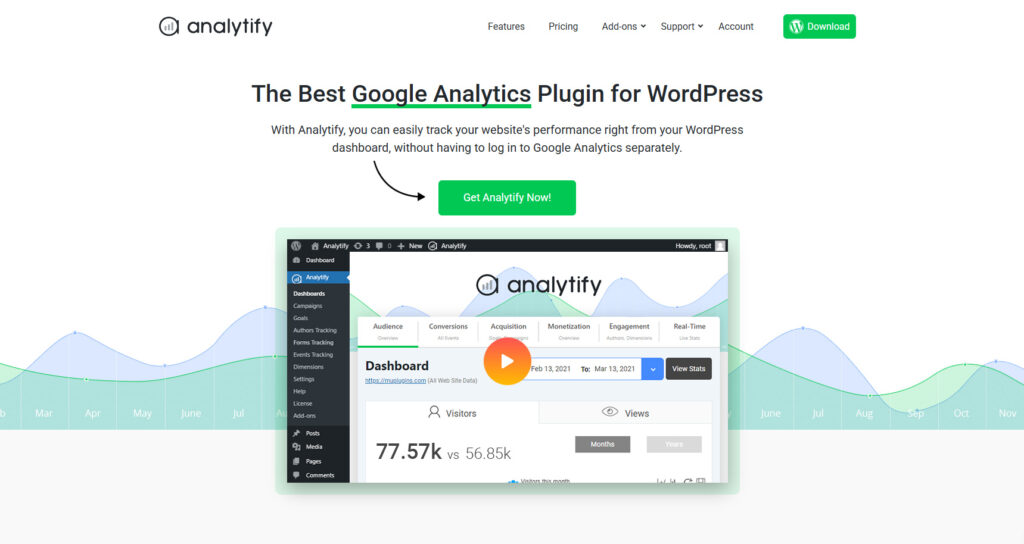
Best Google Analytics Plugin for WordPress
What it does: Brings Google Analytics data directly into your WordPress dashboard with beautiful, easy-to-understand reports.
Why you need it: You can’t improve what you don’t measure. Understanding your website traffic, user behavior, and content performance is fundamental to growth. While Google Analytics is powerful, its interface can be overwhelming for beginners.
Analytify solves this by displaying your most important analytics right where you work—inside WordPress. No more switching tabs or deciphering complex Google Analytics reports.
Key Features:
- Real-time visitor tracking in WordPress dashboard
- Page-level analytics for individual posts and pages
- Top content, referrers, and search terms at a glance
- Easy-to-understand visual reports
- Google AdSense tracking integration
- E-commerce tracking for WooCommerce
- Campaign tracking for marketing initiatives
- Automatic Google Analytics setup (no code required)
Best for: Bloggers, marketers, and business owners who want actionable analytics without the complexity of Google Analytics.
Free vs Pro:
- Free version: Basic analytics, dashboard stats, top pages/posts
- Pro version ($59/year): E-commerce tracking, real-time stats, email reporting, advanced demographics
Pro tip: Set up Analytify immediately after launching your site to build historical data. You’ll thank yourself later when making data-driven decisions about content strategy.
2. LoginPress: Custom Login and Secure UX
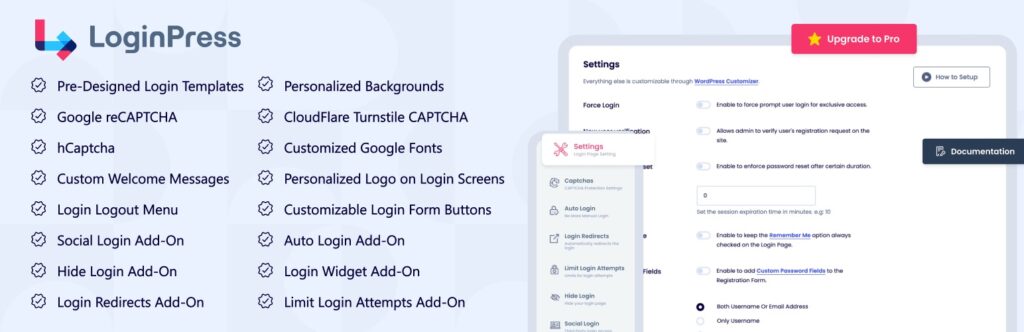
LoginPress wp-login Custom Login Page Customizer
What it does: Customizes your WordPress login page and enhances security through better login experiences and protection features.
Why you need it: The default WordPress login page is boring and screams “this is a WordPress site” to potential hackers. Worse, it offers no protection against brute force attacks where hackers try thousands of password combinations.
LoginPress transforms your login experience while adding critical security layers. A professional, branded login page builds trust with users and team members, while security features protect your site from unauthorized access.
Key Features:
- Drag-and-drop login page customizer
- Custom logos, backgrounds, and colors
- Login redirect controls
- Login error messages (without revealing user existence)
- reCAPTCHA integration for bot protection
- Login attempt limiting
- Activity logs showing login attempts
- Two-factor authentication (Pro)
- Social login options (Pro)
Best for: Business websites, membership sites, and anyone serious about WordPress security and branding.
Free vs Pro:
- Free version: Login customization, basic security features
- Pro version ($39/year): 2FA, login attempt limits, social login, activity logs
Security note: Pair LoginPress with other security measures like SSL certificates and regular backups for comprehensive protection.
3. Simple Social Buttons: Lightweight Social Sharing
Simple Social Media Share Buttons – Essential Plugin for WordPress
What it does: Adds social sharing buttons to your posts and pages without slowing down your site.
Why you need it: Social sharing is crucial for content distribution, but most social sharing plugins are bloated with features you’ll never use. They load dozens of scripts that significantly slow page load times.
Simple Social Buttons does exactly what its name suggests—provides clean, fast social sharing without the bloat. Every share amplifies your content reach and brings new visitors to your site.
Key Features:
- Lightweight code (minimal performance impact)
- Share counts display (optional)
- Multiple button styles and positions
- Supports all major social networks (Facebook, Twitter, LinkedIn, Pinterest, etc.)
- Mobile-responsive design
- Customizable colors and sizes
- No external dependencies or heavy scripts
- Works with any theme
Best for: Bloggers, content creators, and businesses wanting to amplify content reach through social sharing.
Free vs Pro:
- Free version: All essential sharing features, multiple platforms
- Pro version ($29/year): Advanced customization, placement options, A/B testing
Performance tip: Only enable social networks your audience actually uses. Every additional button is another HTTP request, so be strategic.
4. Related Posts Thumbnails: Keep Readers on Your Site
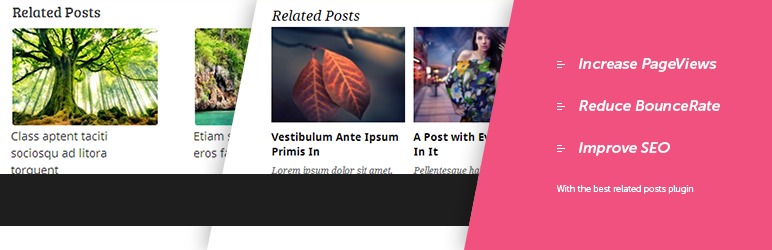
Related Posts Thumbnails Plugin for WordPress
What it does: Displays related posts with attractive thumbnails at the end of your content, encouraging visitors to read more.
Why you need it: The average website visitor leaves after viewing just one page. Related posts combat this by suggesting relevant content that interests readers, increasing engagement, time on site, and pages per session—all positive signals for SEO.
Related Posts Thumbnails uses sophisticated algorithms to find truly relevant content, not just random posts. The thumbnail display is visually appealing and encourages clicks.
Key Features:
- Automatic related post detection based on categories and tags
- Customizable thumbnail sizes and layouts
- Grid or list display options
- Post excerpt display (optional)
- Exclude specific posts or categories
- Custom post type support
- Responsive design for mobile devices
- Lightweight and fast-loading
Best for: Blogs, news sites, and content-heavy websites wanting to increase pageviews and reduce bounce rates.
Free vs Pro:
- Free version: Essential related post functionality with thumbnails
- Pro version ($29/year): Advanced matching algorithms, A/B testing, analytics
SEO benefit: Increased time on site and lower bounce rates signal quality to Google, potentially improving your search engine rankings.
5. UCMM (Under Construction and Maintenance Mode): Control Site Visibility

Under Construction Coming Soon & Maintenance Mode
What it does: Displays a “coming soon” or “maintenance mode” page to visitors while you work on your site behind the scenes.
Why you need it: Launching a half-finished website damages your credibility. Similarly, performing major updates on a live site exposes visitors to broken pages and error messages. UCMM (Under Construction and Maintenance Mode) lets you control exactly what visitors see while you perfect your site.
The plugin is especially valuable when migrating WordPress to a new host, making design changes, or building a new site before launch.
Key Features:
- One-click maintenance mode activation
- Customizable coming soon pages
- Countdown timer for launches
- Email subscription collection
- Social media link integration
- Whitelist specific users or IP addresses
- Mobile-responsive designs
- SEO-friendly (returns proper HTTP headers)
- Custom CSS and HTML support
Best for: New websites under construction, existing sites during major updates, and pre-launch marketing campaigns.
Free vs Pro:
- Free version: Basic maintenance mode with customization
- Pro version ($39/year): Advanced templates, email marketing integration, analytics
Launch strategy: Use UCMM with a countdown timer and email collection to build anticipation and capture leads before your official launch.
6. Headers and Footers: WordPress Code Manager
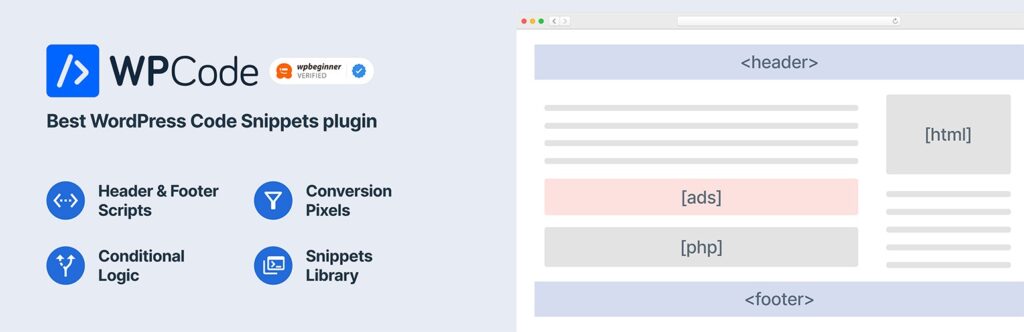
WPCode – Insert Headers and Footers + Custom Code Snippets – WordPress Code Manager
What it does: Allows you to easily insert code snippets, scripts, and content into your site’s header or footer without editing theme files.
Why you need it: Many essential services require adding code to your site’s header or footer—Google Analytics, Facebook Pixel, verification codes, custom CSS, and third-party integrations. Editing theme files directly is risky and your changes disappear when you update your theme.
Headers and Footers provides a safe, theme-independent way to add these code snippets that persists through theme changes and updates.
Key Features:
- Insert code in header (before </head> tag)
- Insert code in footer (before </body> tag)
- Insert code after opening <body> tag
- No theme file editing required
- Changes persist through theme updates
- Syntax highlighting for easier editing
- Page-specific code insertion
- Support for any code type (JavaScript, CSS, HTML, meta tags)
Best for: Every WordPress site that uses third-party services, tracking codes, or custom scripts.
Common use cases:
- Google Analytics tracking code
- Facebook Pixel for ad tracking
- Google Tag Manager
- Site verification codes (Google Search Console, Bing)
- Custom fonts from Google Fonts or Adobe Fonts
- Live chat widget scripts
- Heatmap and user behavior tracking (Hotjar, Crazy Egg)
- Custom CSS for design tweaks
Safety tip: Always backup your site before adding new code. Test changes on a staging site first if possible. One misplaced semicolon can break your entire site.
7. Yoast SEO: Optimize for Search Engines
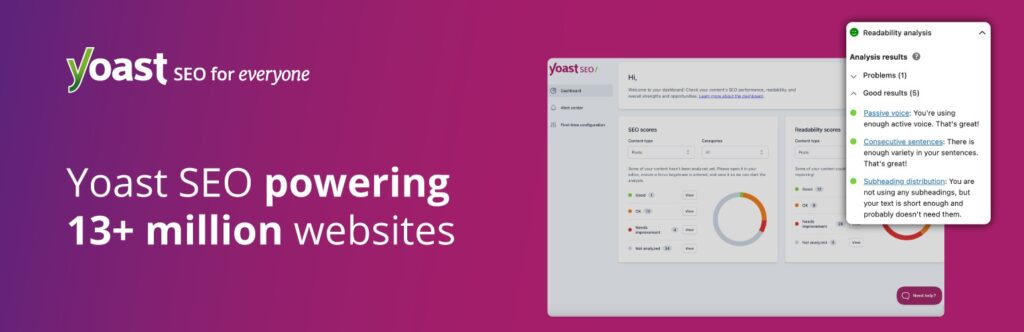
Yoast SEO – Advanced SEO with real-time guidance and built-in AI
What it does: Provides comprehensive SEO tools to optimize your content, technical SEO, and site structure for better search engine rankings.
Why you need it: SEO isn’t optional—it’s how potential customers find you through Google. But technical SEO can be overwhelming for beginners. Yoast SEO simplifies the complex world of search optimization with clear guidance and actionable recommendations.
Yoast is the most popular WordPress SEO plugin with over 5 million active installations. It handles everything from on-page optimization to XML sitemaps to social media integration.
Key Features:
- Real-time content analysis and SEO scoring
- Focus keyword optimization
- Readability analysis
- XML sitemap generation
- Breadcrumb navigation
- Social media preview and optimization
- Schema markup (structured data)
- Duplicate content prevention (canonical URLs)
- Meta title and description templates
- Internal linking suggestions
- Cornerstone content identification
Best for: Anyone serious about ranking in search engines—from beginner bloggers to established businesses.
Free vs Pro:
- Free version: All core SEO features (sufficient for most users)
- Pro version ($99/year): Multiple focus keywords, redirect manager, internal linking suggestions, 24/7 support
SEO strategy: Combine Yoast SEO with these top SEO strategies and follow this SEO guide for beginners for comprehensive optimization.
Important note: Yoast SEO is powerful but not magic. Green lights don’t guarantee rankings—focus on creating genuinely helpful content for your audience while following Yoast’s technical guidance.
8. UpdraftPlus: WP Backup & Migration Plugin

UpdraftPlus WP Backup & Migration Plugin
What it does: Automatically backs up your entire WordPress site to cloud storage and provides simple one-click restoration when needed.
Why you need it: Backups are insurance for your website. Hacks, server failures, plugin conflicts, and human errors can destroy months or years of work in seconds. Without backups, you’re gambling with your online presence.
UpdraftPlus is the most popular backup plugin for WordPress because it makes backup and restoration genuinely simple, even for non-technical users.
Key Features:
- Automated scheduled backups (daily, weekly, monthly)
- Multiple cloud storage options (Google Drive, Dropbox, Amazon S3)
- One-click restoration
- Separate database and file backups
- Manual backup creation anytime
- Backup encryption
- Email notifications for backup status
- Migration and cloning tools (Pro)
- Incremental backups (Pro)
Best for: Every WordPress site. Period. Backups aren’t optional.
Free vs Pro:
- Free version: Complete backup and restore functionality (sufficient for most small sites)
- Pro version ($70/year): Incremental backups, migration tools, priority support, advanced scheduling
Critical reminder: Backups only work if you test them. Run a test restoration at least once to verify your backups actually work. The worst time to discover backup problems is during an emergency.
Comprehensive backup guide: Learn more about WordPress backup best practices and why automated backups are essential for WordPress security.
9. WP Mail SMTP by Mailchimp: Fix WordPress Email Delivery
WP Mail SMTP by Mailchimp
What it does: Ensures WordPress emails (contact forms, password resets, notifications) actually reach recipients’ inboxes instead of spam folders.
Why you need it: Here’s a dirty secret about WordPress: the default email sending method is unreliable. Many hosting servers aren’t configured properly for email delivery, causing WordPress emails to bounce or land in spam folders.
You might not even realize you’re missing important contact form submissions, user notifications, or password reset requests. WP Mail SMTP fixes this by routing emails through reliable SMTP services.
Key Features:
- Easy SMTP configuration
- Multiple mailer options (Gmail, Outlook, SendGrid, Mailgun, etc.)
- Email logging (see what’s being sent and track delivery)
- Test email functionality
- White glove setup service (Pro)
- Detailed documentation for all major email services
- Backup SMTP connection (Pro)
- Smart routing (Pro)
Best for: Every WordPress site with contact forms, user registrations, or any email functionality.
Free vs Pro:
- Free version: Full SMTP functionality with multiple mailer options
- Pro version ($49/year): Email logging, white glove setup, backup connections
Popular SMTP services to use:
- Gmail: Free for personal use, reliable
- SendGrid: Free for 100 emails/day
- Mailgun: Free for 5,000 emails/month
- Postmark: Excellent deliverability, paid service
- Amazon SES: Pay-as-you-go, extremely reliable
Setup tip: After configuring WP Mail SMTP, send a test email to multiple addresses (Gmail, Yahoo, Outlook) and check if they arrive in inbox or spam folder.
10. Smush: Image Optimization | Convert WebP & AVIF
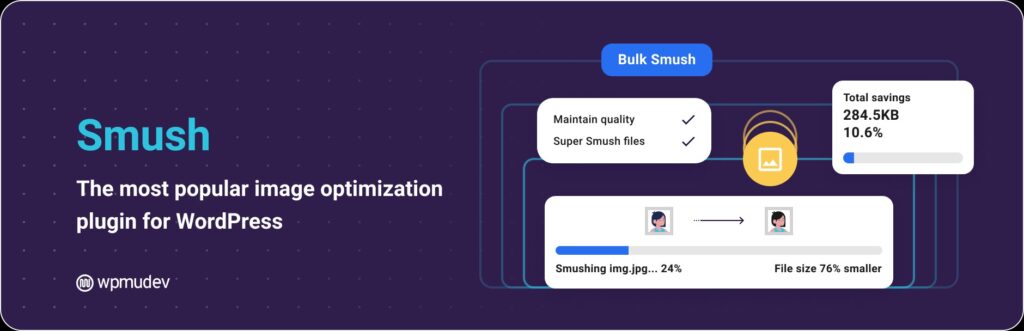
Smush Image Optimization Convert WebP & AVIF
What it does: Automatically compresses and optimizes images to reduce file sizes without visible quality loss, dramatically improving site speed.
Why you need it: Images typically account for 50-90% of total page weight. Unoptimized images are the #1 cause of slow WordPress sites. Slow sites frustrate visitors, increase bounce rates, and hurt search engine rankings.
Smush optimizes images automatically as you upload them, ensuring your site stays fast without requiring manual image compression.
Key Features:
- Automatic image compression on upload
- Bulk optimization for existing images
- Lossless and lossy compression options
- Lazy loading (images load only when visible)
- WebP conversion for modern browsers
- Image resizing (detect and resize oversized images)
- CDN delivery (Pro)
- Incorrect size image detection
- Works with any WordPress theme
Best for: Every WordPress site with images—especially photography sites, portfolios, e-commerce stores, and image-heavy blogs.
Free vs Pro:
- Free version: Compress 50 images at a time, essential optimization features
- Pro version ($49/year): Unlimited compressions, lossy compression, CDN, auto-resize
Performance impact: Optimized images can reduce page size by 50-70%, cutting load times from 5 seconds to 2 seconds—a massive improvement for WordPress performance and user experience.
Best practice: Always optimize images before uploading when possible, then use Smush as a safety net. Consider running bulk optimization on existing images after installation.
How These Plugins Work Together: Real-World Setup Scenarios
Understanding how these essential plugins complement each other helps you build a cohesive WordPress site. Here are practical scenarios showing how they work together.
Scenario 1: Launching a New Business Website
Your goal: Create a professional website with analytics, SEO, and lead generation capabilities.
Essential plugin stack:
- UCMM – Hide site from public while building
- Yoast SEO – Optimize all pages before launch
- Smush – Optimize images for fast loading
- Headers and Footers – Add Google Analytics tracking code
- Analytify – Monitor traffic after launch
- WP Mail SMTP – Ensure contact form submissions arrive
- UpdraftPlus – Backup before and after launch
- LoginPress – Brand login page and secure admin access
Workflow: Enable UCMM immediately to show “coming soon” page → Build site with Yoast SEO guidance → Optimize images with Smush → Add tracking codes via Headers and Footers → Configure contact form with WP Mail SMTP → Set up automated backups with UpdraftPlus → Customize and secure login with LoginPress → Launch site and monitor with Analytify
Scenario 2: Optimizing an Existing Blog for Growth
Your goal: Improve SEO rankings, increase engagement, and protect your content investment.
Essential plugin stack:
- Yoast SEO – Audit and optimize existing content
- Related Posts Thumbnails – Keep readers on site longer
- Simple Social Buttons – Enable content sharing
- Analytify – Track which content performs best
- Smush – Bulk optimize all existing images
- UpdraftPlus – Protect years of content with backups
- Headers and Footers – Add Facebook Pixel for remarketing
Workflow: Install Yoast SEO and audit current content → Bulk optimize images with Smush → Add Related Posts to increase pages per session → Enable social sharing with Simple Social Buttons → Set up analytics with Analytify → Implement automated backups with UpdraftPlus → Add remarketing tracking via Headers and Footers
Scenario 3: Securing an E-commerce Site
Your goal: Protect customer data, ensure transaction emails deliver, and maintain site uptime.
Essential plugin stack:
- UpdraftPlus – Daily automated backups to cloud storage
- LoginPress – Limit login attempts, add 2FA
- WP Mail SMTP – Reliable order confirmation emails
- UCMM – Maintenance mode for updates without disruption
- Smush – Optimize product images for fast browsing
- Analytify – Track conversion funnels and cart abandonment
- Yoast SEO – Optimize product pages for search
Workflow: Implement daily backups with UpdraftPlus → Secure login with LoginPress (2FA enabled) → Configure reliable transactional email with WP Mail SMTP → Optimize all product images with Smush → Set up conversion tracking with Analytify → Optimize product pages with Yoast SEO → Use UCMM for maintenance windows
Scenario 4: Building a Portfolio Website
Your goal: Showcase work beautifully, rank for relevant searches, and collect inquiries.
Essential plugin stack:
- Smush – Optimize portfolio images without quality loss
- LoginPress – Branded login experience
- Yoast SEO – Optimize portfolio pieces for discovery
- Simple Social Buttons – Enable work sharing
- WP Mail SMTP – Ensure inquiry form submissions arrive
- UpdraftPlus – Protect portfolio and testimonials
- Headers and Footers – Add custom fonts and tracking
Workflow: Optimize all portfolio images with Smush → Brand site completely including login with LoginPress → Optimize each portfolio piece with Yoast SEO → Enable social sharing with Simple Social Buttons → Configure contact form delivery with WP Mail SMTP → Set up backups with UpdraftPlus → Add custom typography and analytics via Headers and Footers
Best Practices When Installing Plugins
Follow these best practices to avoid common pitfalls and maintain a healthy WordPress site.
Before Installing Any Plugin
1. Research thoroughly Don’t install plugins impulsively. Check:
- Last update date (within 6 months is ideal)
- Active installations (higher is generally better)
- User ratings (4+ stars minimum)
- Support forum activity (responsive developers)
- Compatibility with your WordPress version
2. Create a backup Always backup your site before installing new plugins, especially major ones that affect core functionality. Use UpdraftPlus to create a manual backup with one click.
3. Check plugin permissions Review what the plugin requests access to. Be skeptical of plugins requesting unnecessary permissions or access to sensitive data.
4. Test on staging first (if possible) If you have a staging environment, install and test new plugins there before deploying to your live site. This catches compatibility conflicts before they affect visitors.
During Installation
1. Install from official sources only Only install plugins from:
- WordPress.org plugin repository
- Reputable developer websites
- Official marketplaces (CodeCanyon with caution)
Never install nulled (pirated) premium plugins. They often contain malware and won’t receive updates or support.
2. Review settings immediately Don’t just activate and forget. Review all plugin settings to ensure proper configuration. Default settings aren’t always optimal for your specific needs.
3. Test functionality After activation, test the plugin’s functionality thoroughly:
- Does it work as expected?
- Does it conflict with other plugins?
- Does it slow down your site noticeably?
- Does it break any existing functionality?
4. Document your configuration Keep notes on important plugin settings, especially for security and backup plugins. This documentation is invaluable when troubleshooting or migrating to a new host.
After Installation
1. Monitor performance impact Use tools like GTmetrix, Google PageSpeed Insights, or Pingdom to measure site speed before and after plugin installation. Uninstall plugins that significantly degrade performance.
2. Set up automatic updates (carefully) Enable automatic updates for security and maintenance plugins like UpdraftPlus and LoginPress. Be more cautious with plugins that directly affect site design or functionality—test major updates on staging first.
3. Schedule regular plugin audits Quarterly, review all installed plugins:
- Are you actually using each one?
- Are there lighter alternatives available?
- Are any abandoned or unmaintained?
- Can any be consolidated?
4. Keep plugins updated Outdated plugins are security vulnerabilities waiting to be exploited. Check for updates weekly and install them promptly (after backing up).
Plugin Organization Tips
Use descriptive names for plugin-created pages When plugins create pages (like contact forms or privacy policies), use clear, descriptive names and URLs for better organization and SEO.
Group similar functionality Avoid installing multiple plugins that do similar things. Choose one comprehensive solution instead of three partial ones.
Bookmark important settings pages Use your browser’s bookmark feature to create quick links to frequently accessed plugin settings pages.
When to Remove a Plugin
Uninstall plugins that:
- You haven’t used in 3+ months
- Are abandoned by developers (no updates in 1+ year)
- Cause frequent conflicts or errors
- Significantly slow down your site
- Have been replaced by better alternatives
- Duplicate functionality of other plugins or WordPress core features
Proper removal process:
- Backup your site first
- Deactivate the plugin
- Verify site still functions properly
- Delete the plugin files completely
- Clean up any database tables left behind (use plugin deactivation tools if provided)
Quick Comparison: Free vs Pro Versions
Understanding when to upgrade to premium versions helps you invest wisely. Here’s a practical comparison:
| Plugin | Free Version Sufficient For | Upgrade to Pro When |
|---|---|---|
| Analytify | Personal blogs, small sites | Need e-commerce tracking, real-time stats, or email reports |
| LoginPress | Basic login customization | Need 2FA, social login, or advanced security features |
| Simple Social Buttons | Standard social sharing | Want advanced customization, A/B testing, or detailed analytics |
| Related Posts | Basic content recommendations | Need advanced matching algorithms or analytics integration |
| UCMM | Simple maintenance pages | Need advanced templates, email marketing integration |
| Headers and Footers | Basic code insertion | Free version covers all needs for most users |
| Yoast SEO | Complete SEO for most sites | Need multiple focus keywords, redirect manager, or 24/7 support |
| UpdraftPlus | Small to medium sites | Large sites need incremental backups, migration tools, or priority support |
| WP Mail SMTP | Reliable email delivery | Need email logging, white glove setup, or backup connections |
| Smush | Light image optimization | Heavy image sites need unlimited compression, CDN, auto-resize |
Cost-Benefit Analysis
When free versions are sufficient:
- You’re starting out with limited budget
- Your site has basic requirements
- Traffic and complexity are low
- You can handle basic troubleshooting yourself
When premium is worth the investment:
- Your site generates revenue
- You need advanced features daily
- Support and documentation are important
- Time savings justify the cost
- You’re managing client or business-critical sites
Budget-friendly approach: Start with free versions of all plugins. Upgrade individually as you encounter limitations or as your site grows. This lets you spread costs while learning which premium features you actually need.
FAQs About Essential Plugins for WordPress
How many plugins should I have on my WordPress site?
Quality matters more than quantity. Most well-optimized sites run 15-25 plugins. Focus on essential functionality and choose lightweight, well-coded plugins. Too many plugins can slow your site and create security vulnerabilities, but too few means you’re missing critical features.
Will these plugins slow down my WordPress site?
The plugins recommended in this guide are chosen for their efficiency. However, any plugin adds some code to your site. Follow these WordPress performance tips to ensure your site stays fast. Always test site speed before and after installing plugins.
Can I use all these plugins together?
Yes, these plugins are designed to work independently and won’t conflict with each other. They cover different aspects of WordPress functionality—analytics, SEO, security, backups, performance, and user experience. Together they create a comprehensive foundation for any WordPress site.
What’s the total cost of using these essential plugins?
You can use the free versions of all these plugins at zero cost. If you upgrade all to premium versions, the total would be approximately $400-500/year. However, most users only need 2-3 premium upgrades based on their specific needs, bringing the annual cost to $100-200.
Do I need different plugins for e-commerce sites?
The essential plugins in this guide work for all WordPress sites, including e-commerce. However, you’ll also need WooCommerce (or similar) for shop functionality, plus payment gateway plugins. The security (LoginPress), backup (UpdraftPlus), and performance (Smush) plugins become even more critical for online stores.
Can plugins conflict with my WordPress theme?
Conflicts are possible but rare with quality plugins and themes. The plugins in this guide are compatible with all major themes. If you experience conflicts, check for theme/plugin updates first, then contact support. Choose well-coded themes from reputable developers to minimize conflict risk.
How do I know if a plugin is safe and secure?
Check these indicators:
- Available in official WordPress plugin repository
- Regular updates (last updated within 6 months)
- High number of active installations
- Good ratings (4+ stars)
- Responsive support forum
- Clear privacy policy
- Transparent developer information
Avoid nulled plugins, plugins from unknown sources, and those with poor reviews citing security issues.
Should I update plugins automatically or manually?
Enable automatic updates for security-critical plugins like backups and security tools. For plugins affecting site functionality or design, consider manual updates so you can test changes on a staging site first. Always backup before major updates regardless of update method.
What happens if I deactivate or delete a plugin?
Deactivating turns off the plugin but keeps settings. Deleting removes the plugin files and may delete settings (some plugins allow data retention). Always backup before removing plugins. Test site functionality after removal to ensure everything still works correctly.
Do I need all 10 plugins right away?
No. Start with the most critical: Yoast SEO, UpdraftPlus, and WP Mail SMTP. Add others as you need them. New sites can skip Related Posts and Analytify until you have content and traffic. UCMM is only needed during construction or maintenance periods.
Can free plugins be trusted for business websites?
Yes, many excellent free plugins are maintained by reputable developers and used by millions of sites. The free versions in this guide are perfectly suitable for business use. Premium versions offer additional features and support but aren’t required for reliable functionality.
How often should I audit my installed plugins?
Review your plugin list quarterly (every 3 months). Check for:
- Plugins you’re not actively using
- Plugins with available updates
- Abandoned plugins (no updates in 1+ year)
- Better alternatives that have emerged
- Functionality now available in WordPress core
Delete unused or outdated plugins to maintain site health and security.
Conclusion: Essential Plugins for WordPress
Building a successful WordPress site doesn’t require dozens of plugins—it requires the right plugins strategically chosen to support your goals.